Your phone froze while saving a clip. A drone landed with a dead battery. A client sent footage that shows nothing but a black screen. The file is there and it has a size, but it won’t play.
Table of Contents
In many of these cases, an online repair tool can make the video playable again. The catch is that these tools differ a lot. Free plans range from a preview only to 5 GB uploads. Some need a second, healthy video from the same camera. One lists close to 30 formats, another works mainly with MP4 and MOV.
This guide compares five online video repair tools: what each one accepts, what the free plan really includes, and how to pick one based on your own file. All details come from each tool’s official pages, we did not run lab tests on every service, so treat repair speed and success claims as the company’s own claims. Prices and limits change often, so check the tool’s page before you pay.
Repair, Recovery or Enhancement: Which Problem Do You Have?
A repair tool only works on a file you still have. People often mix up these three problems and lose hours on the wrong fix, so match yours first.
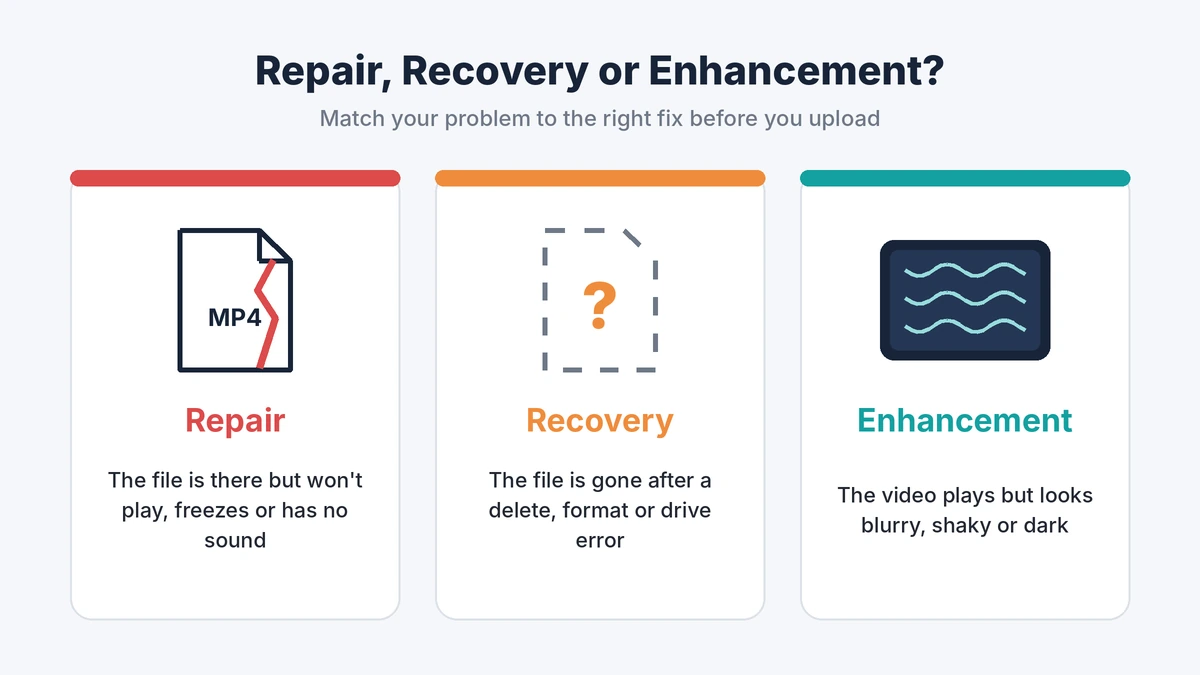
- Repair: the file exists but won’t open, freezes, stutters, shows a black screen or has no sound.
- Recovery: the file is gone because you deleted it, formatted the card or the drive stopped showing up. Use data recovery software first.
- Enhancement: the video plays fine but looks blurry, shaky or dark. You need an AI video enhancer, not a repair tool.
These problems often come in a row. Recovered videos frequently come back damaged, because parts of the file were already overwritten. If a recovered file won’t play, that is the point where a repair tool helps.
Three Free Checks Before You Upload Anything
Sometimes the video isn’t broken at all. These checks take about two minutes and can save you an upload.
- Play it in VLC. VLC plays many formats that the default players on Windows and Mac don’t. If the video plays there, the file is fine. You only need a different player or a format converter.
- Copy it again from the source. If you moved the file from a card or phone, the copy may be the damaged part. Try a fresh copy with a different cable or card reader.
- Check the file size. A 0 KB file holds no video, so there is nothing to rebuild. A normal size is a good sign. It usually means the picture is still inside and only the part that tells the player how to read it is broken.
Will Your Video Fit a Free Plan?
This is where most people get stuck. Free plans in this list cap files at 50 MB or 100 MB, with Clever as the exception. Modern cameras fill that limit in seconds.
| Recording type | Approximate size of 1 minute |
| Screen recording, 1080p | 60 MB |
| Phone video, 1080p at 30 fps | 130 MB |
| Phone video, 4K at 30 fps | 375 MB |
| Action camera or drone, 4K | 750 MB |
So a 50 MB free plan fits about 20 seconds of 1080p phone video. It fits only about 4 seconds of 4K drone footage. Camera settings change these numbers, so always check the real size of your file.
To see the size on Windows, right-click the file and choose Properties. On a Mac, select the file and press Command and I. The same window shows the file extension, such as MP4, MOV or MKV, which tells you which tools will accept it.
How Online Video Repair Works
A video file holds two things. One is the picture and sound. The other is a small index that tells the player where everything sits. Many cameras write that index last, at the moment you press stop.
If the battery dies or the card pops out before that moment, the index never gets written. The footage is still there, but no player can read it. Repair tools rebuild the missing index. The AI-based ones have learned how specific cameras and phones write their files, so they can rebuild the missing parts more accurately.
Why a Sample Clip Helps
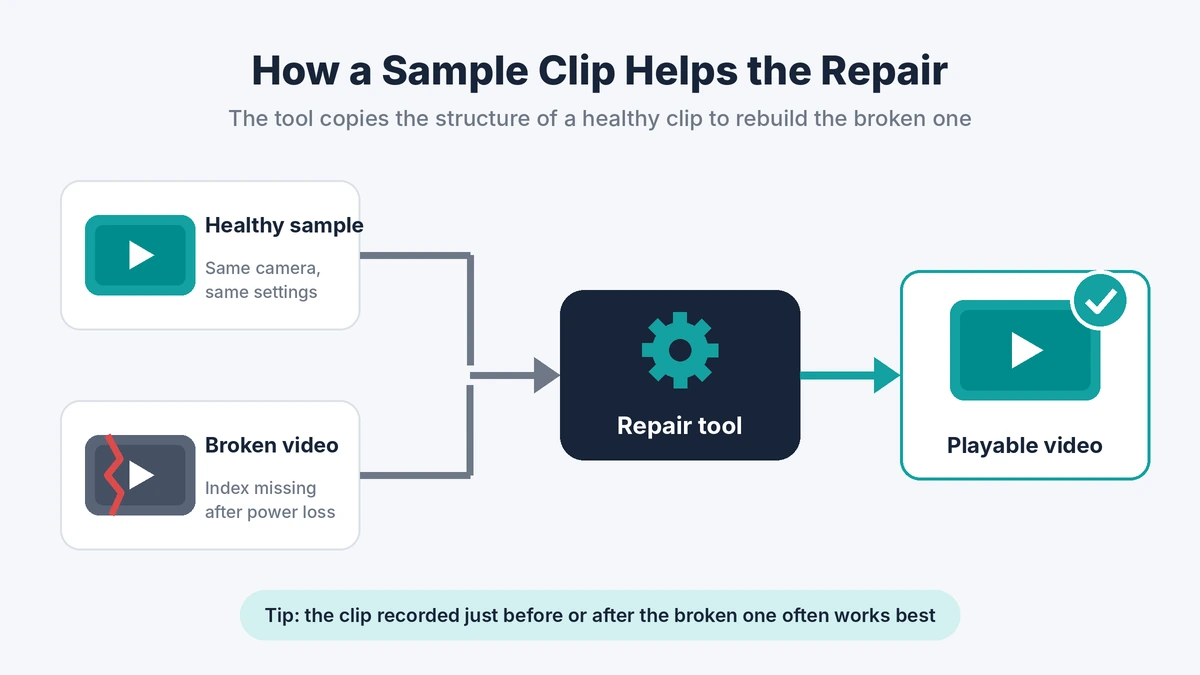
A sample clip is a healthy video from the same camera, recorded with the same settings. The repair tool reads how that clip is built and uses it as a template for the broken file. For recordings cut off by a dead battery, a good sample often decides whether the repair works at all.
How to Make a Sample Clip That Actually Matches
A sample only helps if it matches the broken video. A clip from the same brand but a different model, or the same camera in a different mode, often leads to a failed repair. Check these points before you record:
- Use the same camera or phone, not just the same brand.
- Match the resolution and frame rate, for example 4K at 30 fps.
- Use the same recording mode. Normal, slow motion, HDR and night mode each save files differently.
- Keep the audio setting the same, on or off.
- Record at least 10 to 20 seconds.
For drone and action camera footage, the clip recorded just before or after the broken one is usually the best sample. It shares every setting, and you don’t need to record anything new.
The 5 Online Video Repair Tools Compared
The tools below appear in alphabetical order, not as a ranking. Each one fits a different kind of file, so read the Best for line first.
1. Clever Online Video Repair
Best for: large MP4 or MOV files cut off by a dead battery or a crash.
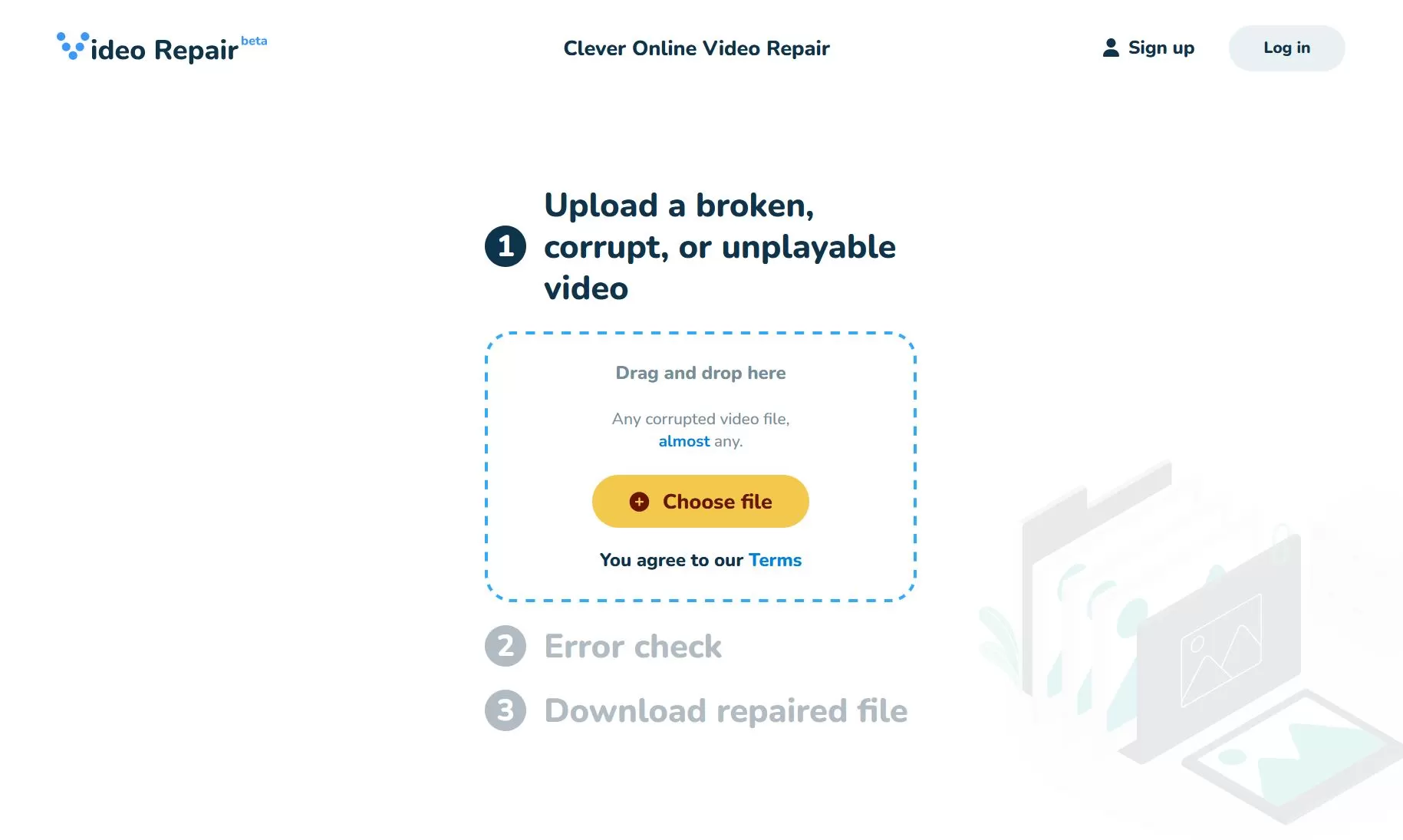
Clever Online Video Repair comes from CleverFiles, the company behind Disk Drill. It focuses on truncated files, meaning videos that stopped before the camera finished saving them. You upload the broken file, pick the camera model if you know it, and add a healthy sample clip when the tool asks for one.
The service is free at the time of writing and takes files up to 5 GB, the most generous free limit in this list. It doesn’t re-encode the video, so quality stays the same. You need to sign up with an email to download the result. CleverFiles has described the tool as free for now, so that could change.
The trade-off is format support. Clever works mainly with the MP4 and MOV family, including M4V, 3GP, F4V and QT files. It is not the right pick for MKV, AVI or AVCHD footage.
| What works well | Watch out for |
| Free, with a 5 GB file limit Built for recordings cut off mid-way No quality loss | Works best with a sample clip and often asks for one Mostly MP4 and MOV style formats Free status may not last |
2. EaseUS Online Video Repair
Best for: short clips in less common or pro camera formats.
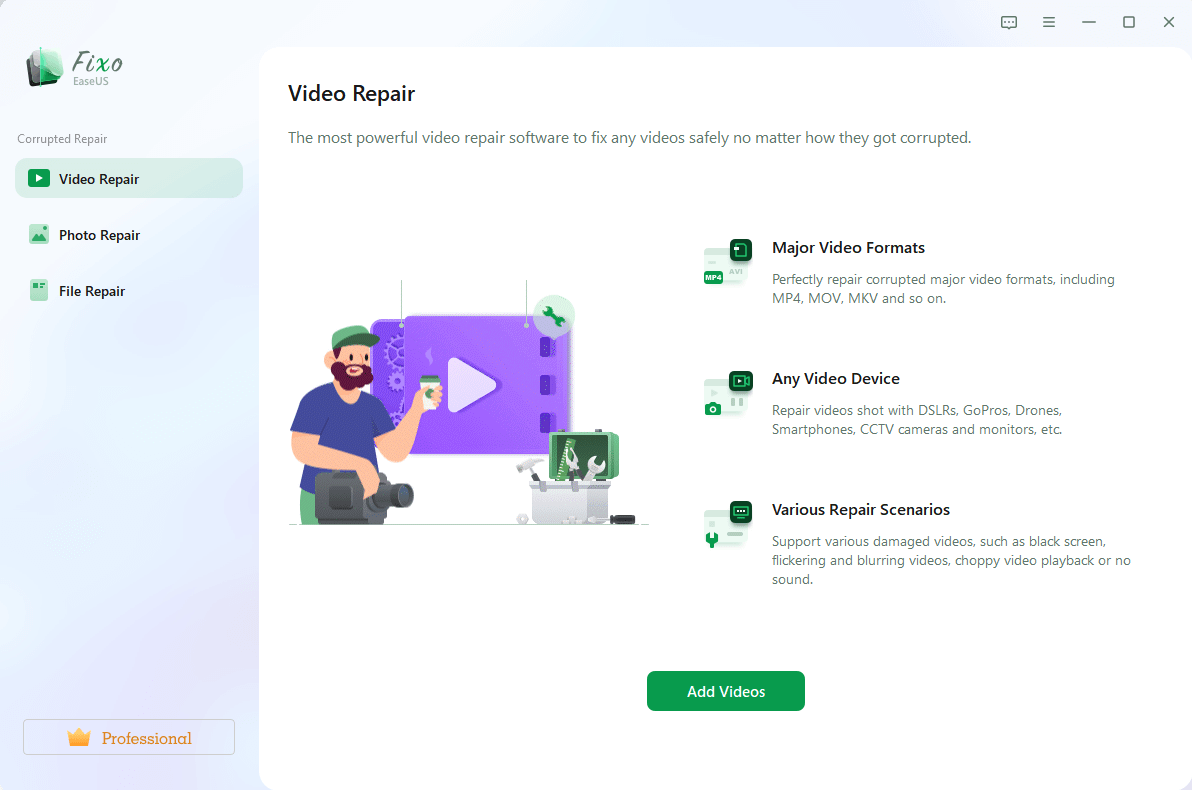
EaseUS has the longest format list of the five, with close to 30 formats in its online tool. Along with MP4, MOV and MKV, it lists Blackmagic BRAW, Insta360 INSV, Sony RSV, MXF, DV and RMVB files.
The limit is size. The online tool only accepts files under 100 MB, and the number of free repairs is limited. Sample-based repair, bigger files and batch jobs need the paid EaseUS Fixo desktop app. EaseUS says an average online repair takes about a minute, and you can preview the result before you download it.
It handles videos that won’t play, stutter, flicker, lose sound or fall out of sync, plus missing details such as the recording date. Uploads go over an encrypted connection.
| What works well | Watch out for |
| Longest format list, including pro camera files Quick results on small clips Preview before download | Online uploads capped under 100 MB No sample-file repair in the browser Limited number of free repairs |
3. Fix.video
Best for: one damaged MP4 or MOV, without a subscription.
Fix.video focuses on MP4 and MOV files from drones and cameras such as DJI, GoPro, Sony, Canon and Nikon. It also lists 3GP, MXF and Sony RSV files.
The payment model is different from the others. You upload the file, see a free preview of the repaired video, and then decide whether to pay. You cannot download the full file for free. The price depends on your file, and you see it before checkout.
Look at that preview closely. It is a low-quality version, so it shows whether the repair worked, not how sharp the final video will be. On Trustpilot, the service holds an average of about 3 out of 5 from fewer than 40 reviews. Some users say it saved footage other tools couldn’t fix, while others were unhappy after paying.
| What works well | Watch out for |
| Free preview before you pay Pay per file, no subscription Built around camera and drone files | No free download Mostly MP4 and MOV Mixed user reviews |
4. Wondershare Repairit Online
Best for: fixing videos along with photos or documents from the same damaged card.
Repairit Online is part of a larger toolkit that also repairs photos and documents. If a failing SD card left you with broken videos and broken photos, you can deal with both in one place.
The video tool supports 10 formats: MP4, MOV, 3GP, M2TS, MKV, MTS, AVI, FLV, MXF and M4V. The free plan repairs one video up to 50 MB. Premium removes the limit on the number of videos and takes files up to 3 GB each. Wondershare lists Premium prices on a separate store page, so check them before you start.
For badly damaged files, Repairit offers Advanced Repair. You add a sample video from the same device, and the tool uses it to rebuild the broken file. Wondershare says it encrypts uploads and deletes files from its servers within 3 hours after the repair.
| What works well | Watch out for |
| Repairs photos and documents too Advanced Repair with a sample clip Short 3-hour deletion window | 50 MB free limit fits only short clips 3 GB cap on Premium Premium price sits on a separate page |
5. Stellar Online Video Repair
Best for: large files in many formats, including camera formats like MTS and AVCHD.
Stellar has made data recovery software since 1993. Its browser tool lists around 20 formats, including MP4, MOV, AVI, MKV, MTS, AVCHD, HEVC, WEBM and Sony RSV. It supports sample-file repair for heavily damaged footage.
The free plan repairs one video up to 50 MB, and its free preview shows 10 percent of the repaired file. Premium costs $9.99 a month and covers 10 videos up to 5 GB each, with downloads open for 48 hours. Premium purchases are not refundable, so use the free preview first. Stellar says most repairs finish within 15 minutes.
Uploads are encrypted, the tool works in read-only mode, and files are deleted automatically after the repair. For files over 5 GB, Stellar sells desktop software at $49.99 a year with no size limit.
| What works well | Watch out for |
| 5 GB uploads on Premium Wide format list, including camera formats Sample-file repair in the browser | Free plan covers one 50 MB file Premium is not refundable Large uploads are slow on weak internet |
Online Video Repair Tools Side by Side
Use this table to narrow the list to one or two tools that accept your file.
| Tool | Free plan | Max upload | Online formats | Sample clip | Best for |
| Clever | Free up to 5 GB | 5 GB | MP4 and MOV family | Often needed | Cut-off recordings |
| EaseUS | Limited free repairs | Under 100 MB | About 28 | Desktop app only | Small files in rare formats |
| Fix.video | Preview only | Not stated | MP4, MOV and a few more | Not stated | One paid repair |
| Repairit | 1 video, 50 MB | 3 GB on Premium | 10 | Yes, Advanced Repair | Videos and photos from one card |
| Stellar | 1 video, 50 MB | 5 GB on Premium | About 20 | Yes | Large files in many formats |
How to Repair a Corrupted Video Online, Step by Step
The buttons differ from site to site, but the process is nearly the same on all five tools.
Step 1: Make a Copy of the Broken File – Keep the original on a separate drive and upload only the copy. If one repair attempt fails, you still have an untouched file to try with another tool.
Step 2: Check the File Size and Format – Note the size and the extension. Use the comparison table above to see which tools and plans will accept the file.
Step 3: Get a Matching Sample Clip – Record a short test clip on the same camera with the same settings, or pick a healthy clip shot the same day. Skip this step only if the damage looks minor.
Step 4: Upload the Broken Video – Open the tool, sign in if it asks, and upload the copy. Add the sample when the tool asks for it, or right away if the video shows nothing at all.
Step 5: Preview the Repaired Video – Watch the start, the middle and the end, and check that the sound plays in sync. Don’t pay for a repair until the preview looks right.
Step 6: Download and Test the File – Download the file before the download window closes, which is 24 to 48 hours on some plans. Play it in two different players and keep the original until you are sure the repair is complete.
What to Do If the Repair Fails
A failed first attempt doesn’t always mean the video is lost. Try these in order:
- Run it again with a better sample. A sample from a different mode or frame rate is a common reason a repair fails.
- Try a second tool. Each service rebuilds files in its own way, so a file one tool rejects may work in another.
- Switch to desktop software. Most of these companies also sell desktop versions with no size cap and deeper repair modes.
- Stop using the memory card. If the card shows errors, copy what you can and stop recording on it. More use can overwrite the frames you are trying to save.
When Online Video Repair Won’t Work
Some damage is beyond what any repair tool can fix. Knowing this up front saves time and money.
- The picture data is gone. If the frames were overwritten, no tool can bring them back.
- The file is 0 KB or only a few kilobytes.
- Ransomware encrypted it. That is a security problem, not a repair job.
- The file is larger than 5 GB. No online plan in this list accepts it, so use desktop software.
Is It Safe to Upload Private Videos?
Every tool here processes your file on its own servers. For family clips that is usually fine. For client work, legal evidence, medical recordings or anything covered by a privacy agreement, check three things first.
- How long the file stays on the server. Repairit says it deletes files within 3 hours. Stellar says it deletes files after the repair, and its download links close after 24 to 48 hours.
- Whether uploads are encrypted. Most of these tools say they are. If the upload page doesn’t mention it, read the privacy policy.
- Whether your contract allows outside uploads. If it doesn’t, use desktop software so the file never leaves your computer.
How to Stop Videos From Getting Corrupted Again
Most corrupted videos come from a few habits. Changing them cuts the risk a lot.
- Charge the battery before long recordings, and stop recording before it runs out.
- Wait for the camera to finish saving before you turn it off or remove the card.
- Format memory cards in the camera, not on a computer.
- Eject cards and drives safely before you unplug them.
- Replace old or cheap memory cards, since worn cards cause many corrupted files.
Final Thoughts
There is no single best online video repair tool. The right one is the tool that accepts your file size and format. Check those two details first, prepare a matching sample clip, and work on a copy. Judge the preview before you pay, and if one tool fails, try another before you give up on the footage.
Frequently Asked Questions
Yes. Clever Online Video Repair is free for files up to 5 GB at the time of writing, though it works best with a sample clip. Stellar and Repairit each repair one video up to 50 MB for free, and EaseUS offers a limited number of free repairs for files under 100 MB. Fix.video only gives a free preview.
Yes, for minor damage. Stellar, Repairit and EaseUS can fix many files without one. For a video cut off by a dead battery or a removed card, a matching sample clip greatly improves the chance of success.
Yes. All five tools run in a mobile browser, so you don’t need an app. Save the video to your phone’s storage first, because these tools need the actual file, not a cloud link.
The sample clip may have used a different audio setting, or the sound part of the file was badly damaged. Try again with a sample recorded with the same audio setting as the broken video.
Only when corruption caused the blur. If the video was shot out of focus or in low light, a repair tool won’t help. You need an AI video enhancer instead.
Stellar, Clever and EaseUS say their repairs keep the original quality. Some previews are lower quality than the final file, so judge the sharpness after you download it.
Leave a Reply