You plug the card into your laptop and the folder is empty. Or Windows says the disk needs formatting. Or your camera shows a card error halfway through a shoot.
Table of Contents
In most of these cases, the photos are still on the card. The card has only lost track of where they are. Recovery software can often find them again, as long as nothing new has been written over them.
There is no single best SD card recovery software for every situation. A tool that is perfect for a quick undelete can struggle with a formatted card, and the reverse is also true. This guide compares seven free and paid tools side by side, explains what each one does well and where it falls short, and shows you how to pick the right one for your problem.
Quick Comparison of SD Card Recovery Tools
The table below lists the tools in alphabetical order. The order is not a ranking.
| Tool | Suited to | Free version | Lowest paid option | Runs on |
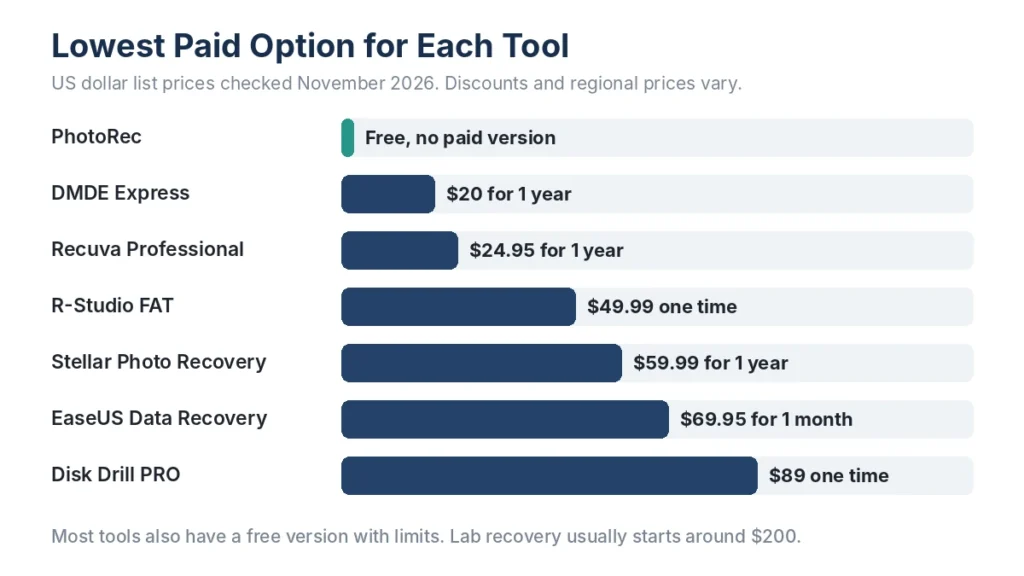
| Disk Drill | Beginners, camera and drone video | 100 MB on Windows | $89 one time | Windows, Mac |
| DMDE | Keeping folder names, low budget | 4,000 files per folder, repeatable | $20 for 1 year | Windows, Mac, Linux |
| EaseUS Data Recovery Wizard | Guided recovery of mixed file types | 500 MB, up to 2 GB after sharing | $69.95 for 1 month | Windows, Mac |
| PhotoRec | Formatted cards on a zero budget | Fully free, no limit | No paid version | Windows, Mac, Linux |
| R-Studio | Experienced users, difficult cases | Demo saves files under 256 KB | $49.99 one time (FAT edition) | Windows, Mac, Linux |
| Recuva | Recent deletions on Windows | Free, no limit | $24.95 for 1 year | Windows |
| Stellar Photo Recovery | Photos and video, with repair options | 10 files, up to 100 MB each | $59.99 for 1 year (list price) | Windows, Mac |
Prices are US dollar list prices checked in November 2026. Vendors run discounts often, and prices differ by region.
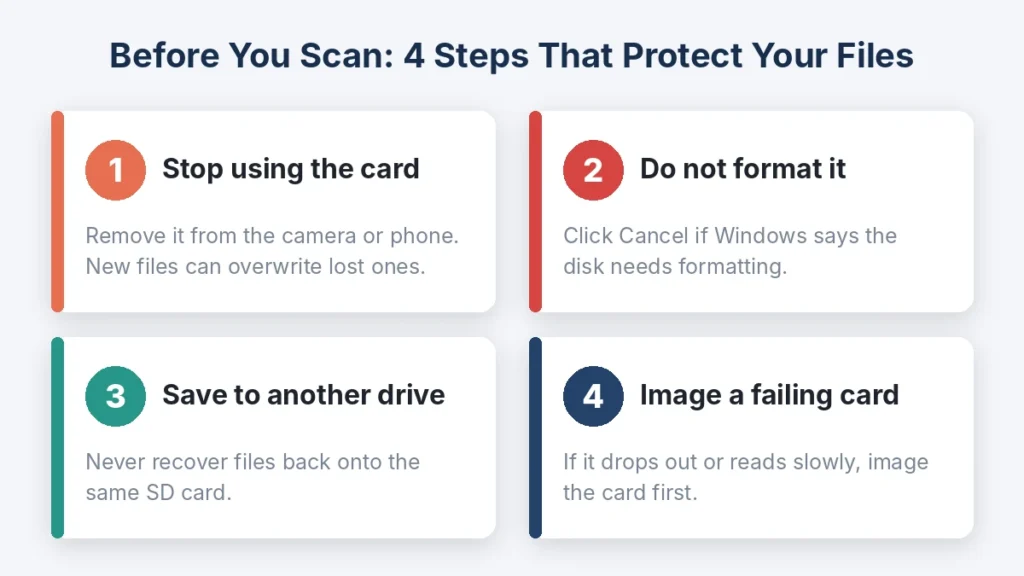
Before You Install Anything, Do These Four Things
Most failed recoveries go wrong before the scan even starts. These four steps protect your chances no matter which tool you use.
- Stop using the card. Take it out of the camera or phone right away. A new photo can land on the space a deleted photo still occupies.
- Do not format the card. If Windows or macOS says the disk needs formatting, click Cancel. The message means the computer cannot read the file system. It does not mean your files are gone.
- Recover to a different drive. Install the software on your computer and save found files to the computer or an external drive. Never save them back to the card you are scanning.
- Image a card that acts strange. If the card drops out, freezes or reads very slowly, copy the whole card to an image file first and scan that copy. Disk Drill, DMDE and R-Studio can all do this. It protects you if the card fails during a long scan.
Check These Free Places First
Before you scan anything, make sure the files are really missing. People often skip this and pay for software they did not need.
- If your camera has two card slots, check whether it saved a backup copy to the second card.
- Phone gallery apps usually keep deleted items in a Recently Deleted or Trash folder for a set number of days.
- Look for an automatic cloud upload, such as Google Photos, iCloud or OneDrive.
- Check the import folder on your computer. Photo apps often copy cards when you plug them in.
- If you use a microSD card in an adapter, try a different adapter. A faulty adapter can make a healthy card look broken.
How We Compared These Tools
To find the best SD card data recovery software for different needs, we looked at the problems people actually have with memory cards. Each tool was checked against the same points:
- Support for SD, microSD, SDHC and SDXC cards, including the FAT32 and exFAT file systems that cameras use.
- Support for camera RAW photos and modern video formats, not only JPEGs.
- How much the free version actually lets you save, not just scan.
- Total cost, including whether the license is monthly, yearly or one time.
- Recent updates, so the tool runs on Windows 11 and current versions of macOS.
This comparison is based on vendor documentation, published limits and current prices. We did not run our own lab tests, so results on your card may differ. That is why every section below suggests testing the free version first.
Top 7 Best SD Card Recovery Software
Let’s discuss in details about the top tools to recover lost data from SD card:
1. Disk Drill
Disk Drill, made by CleverFiles, has a clean and guided interface that suits first time users. You pick the card, run a scan and filter the results by file type before recovering anything. Version 6 added Advanced Camera Recovery, a mode designed to rebuild fragmented video from cameras and drones. It can also make a byte to byte backup of a failing card, so you scan the copy instead of the card.
The downside is the free allowance. On Windows it covers only 100 MB, which is enough for a test but not for a full shoot. The PRO license is also one of the more expensive options for a one time rescue.
Free version: 100 MB on Windows. The Mac version has different terms.
Paid options: PRO costs $89 one time. Upgrades to future major versions cost extra.
Runs on: Windows 10 and 11, macOS.
A good fit if: you want a simple interface, or you are recovering video from an action camera or drone.
2. DMDE
DMDE is less well known, but it has a loyal following among technicians. It can rebuild the folder tree of a damaged card, so files often come back with their original names and folders. It also supports disk imaging and runs on Windows, Mac, Linux and even DOS.
Its free edition is more useful than most. It recovers up to 4,000 files from one folder at a time, and you can repeat this as many times as you like. What the free edition cannot do is restore many folders in one go. The screens look technical, so take care to select the right disk.
DMDE’s own editions page makes a point that applies to every tool here. If a file does not open after recovery with the free version, buying a license will not fix it.
Free version: Up to 4,000 files from one folder per recovery, with no limit on repeats.
Paid options: Express costs $20 for one year. Standard costs $48 one time. Professional, which allows recovering data for clients, costs $95.
Runs on: Windows, Mac, Linux, DOS.
A good fit if: you are comfortable with technical screens and want folder names back at a low cost.
3. EaseUS Data Recovery Wizard
EaseUS Data Recovery Wizard is a general recovery tool with a step by step design. You can filter scan results by type and preview files before saving them. It also handles documents and other files that may share the card with your photos.
Its free allowance is the largest among the paid tools here. The catch is cost. The monthly plan renews automatically, so cancel it if you only need it once.
Free version: 500 MB, rising to 2 GB after you share the app on social media.
Paid options: $69.95 for one month, $99.95 for one year or $149.95 for a lifetime license.
Runs on: Windows, macOS.
A good fit if: your lost files fit within 2 GB, or you want a guided tool for mixed file types.
4. PhotoRec
PhotoRec is free, open source and has no recovery limit. Christophe Grenier created it in 2002, and CGSecurity still maintains it alongside its sister tool, TestDisk. You can get both from the official CGSecurity download page.
PhotoRec ignores the file system and searches the card for known file patterns instead. That makes it strong on formatted or badly corrupted cards, where other tools may see nothing. It recognizes hundreds of formats, including common camera RAW and video files. That is why many people consider it the best free SD card data recovery software.
The trade off is comfort. PhotoRec does not show previews before saving, and it loses the original file names and folders. You get folders named recup_dir full of numbered files. The main version runs in a text window, though Windows users can use QPhotoRec, a simple graphical version included in the same download.
Tip: in the file options, turn off every format except the ones you need, such as jpg, cr3 or mp4. You will get a much cleaner result folder.
Free version: Fully free with no limit.
Paid options: None. There is no paid version.
Runs on: Windows, Mac, Linux.
A good fit if: you have no budget, the card was formatted, and you do not mind sorting files afterwards.
5. R-Studio
R-Studio, from R-Tools Technology, is a professional grade program used by many recovery technicians. It offers detailed scan controls, disk imaging, a hex viewer and RAID support. Most home users will never need all of that, and the interface has a steep learning curve.
One detail matters for SD card users. The R-Studio FAT edition covers FAT32 and exFAT, the file systems almost all SD cards use, at a lower price than the full edition. The demo mode is limited, though. It recovers only files smaller than 256 KB, so you can see what it finds but cannot save full size photos without paying.
Free version: Demo saves files under 256 KB only.
Paid options: R-Studio FAT costs $49.99 one time. The full Windows edition costs $79.99. Mac and Linux versions are sold separately.
Runs on: Windows, Mac, Linux.
A good fit if: you are an experienced user facing a difficult case, such as a damaged file system or a lost partition.
6. Recuva
Recuva comes from Piriform, the company behind CCleaner. It is free and still receives updates, with version 1.55 released in June 2026. A short wizard asks what you lost and where, then starts the scan.
Recuva works best on simple cases, such as photos deleted a few minutes ago from a card that still works. It is weaker on formatted cards and on newer RAW and video formats, and it only runs on Windows. The paid Professional edition adds virtual drive support, automatic updates and priority support. It does not unlock better recovery.
If your photos went missing from your computer rather than the card, follow our guide to recover lost photos on Windows for free.
Free version: Fully free with no recovery limit.
Paid options: Professional costs $24.95 for one year.
Runs on: Windows only.
A good fit if: you use Windows and deleted photos recently from a card that still works.
7. Stellar Photo Recovery
Stellar Photo Recovery focuses only on photos, videos and audio. It supports RAW formats from major camera brands, including Canon, Nikon, Sony, Fujifilm and Panasonic, and it handles HEIC, MP4 and MOV files. The higher editions add repair tools. Professional repairs damaged photos, and Premium also repairs damaged videos.
The free version saves up to 10 files of up to 100 MB each. That is enough to test a few shots, but not a full card. Licenses are yearly by default, and the program does not cover documents or other file types.
Free version: 10 photo, video or audio files, each up to 100 MB.
Paid options: List prices are $59.99 a year for Standard, $79.99 for Professional and $149.99 for Premium. The company discounts them often. In November 2026 they sold for $49.99, $59.99 and $69.99. Lifetime licenses are also available.
Runs on: Windows, macOS.
A good fit if: you only need photos and videos back, and some of the recovered files may need repair.
Which Tool Fits Your Situation?
Match the tool to the problem, not to the brand. Here is where to start for the most common cases.
| Your situation | Tools to try first | Why |
| Photos deleted recently, card works fine, Windows | Recuva, PhotoRec | Both are free with no limit |
| Card was formatted by mistake | PhotoRec, DMDE | Pattern search and folder rebuild both work after a quick format |
| You need original folder names | DMDE, R-Studio | Both rebuild the folder tree when records survive |
| Under 2 GB of files, want a simple app | EaseUS Free | Fits inside the free allowance |
| Large RAW shoot or long videos | Free versions of Disk Drill, EaseUS and Stellar | Compare previews before you pay for one |
| Recovered files will not open | Stellar Professional or Premium, or a video repair tool | Repair tools rebuild damaged files |
| Card disconnects or is not detected | None | Stop scanning and contact a recovery lab |
If you are unsure, run the free scan of two different tools and compare what each one finds. The best SD card file recovery software for you is the one that shows your actual files in a clean preview.
A Free Scan Is Not Free Recovery
Almost every paid tool lets you scan for free. Limits apply when you try to save. Before paying for any license, check three things:
- The free allowance. Know whether the limit is in megabytes, files or folders, and whether it is enough for your job.
- The previews. Open several photos and, where possible, play a video. A file listed in the results is not the same as a file that opens.
- The license type. A monthly plan renews, a yearly plan expires, and a one time license does not. Pick the one that matches how often you will use it.
How to Recover Files From an SD Card, Step by Step
Button names vary between programs, but the process is the same for nearly all of them. The images below are illustrations, not screenshots of a specific product.
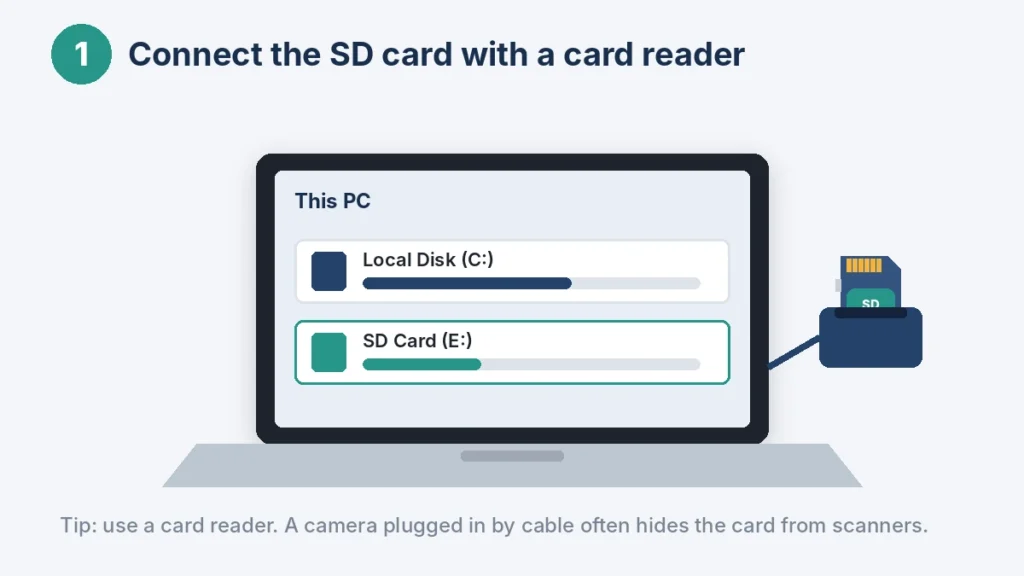
Step 1: Connect the Card With a Card Reader
Put the card in your laptop slot or a USB card reader. Avoid connecting the camera by cable. Many cameras show up as a media device, which hides the card from recovery tools. Then install your chosen program on the computer, not on the card.
Step 2: Select the Card and Start a Scan
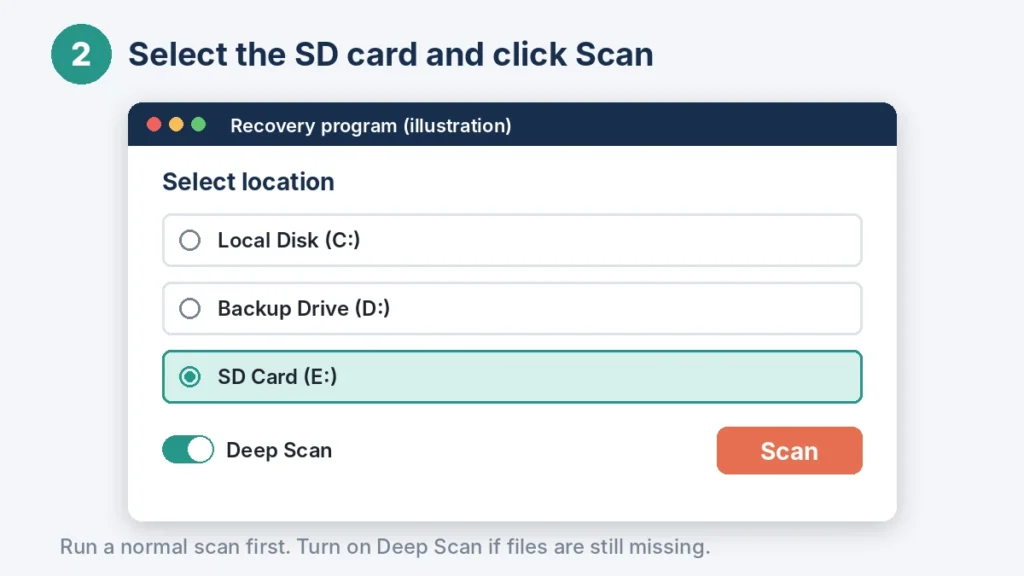
Open the program and choose the SD card from the list of drives. Check the size so you do not pick the wrong disk. Run the normal scan first. If files are still missing, run a deep scan, which reads the whole card and can find files after a format.
Step 3: Preview What the Scan Found
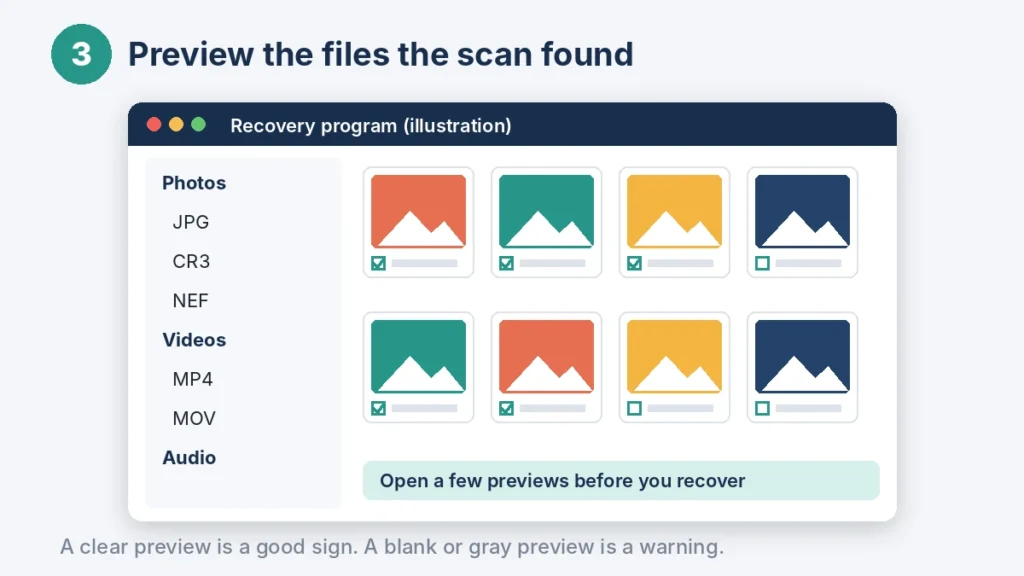
Most programs sort results by file type. Open a few photos and videos in the preview window. A clear preview is a good sign. A gray, blank or broken preview usually means that file is damaged, and saving it will not change that.
Step 4: Save the Files to a Different Drive
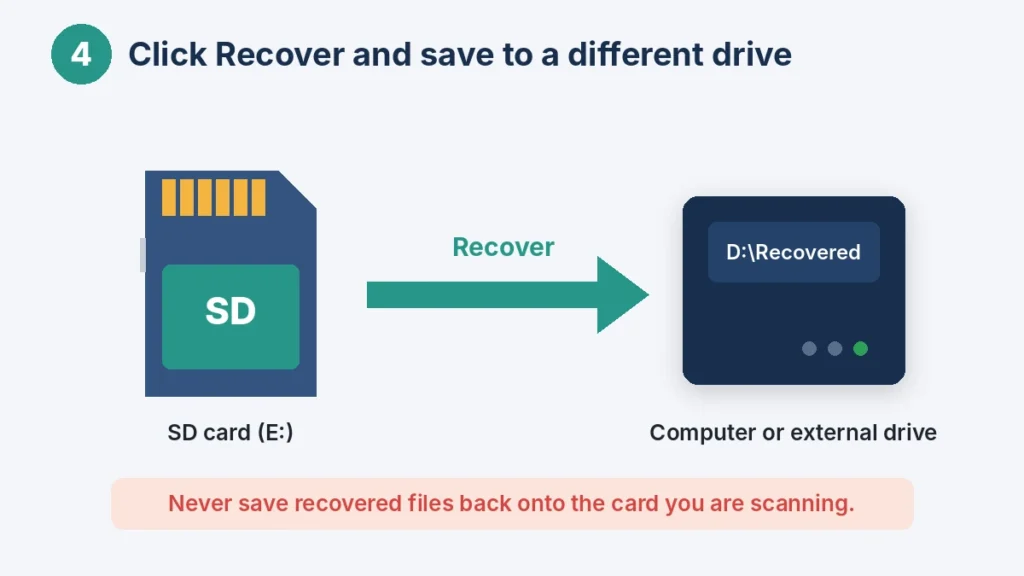
Select the files you want and click the recover button. Choose a folder on your computer or an external drive, never the SD card itself. When it finishes, open the recovered files to make sure they work before you format or reuse the card.
What Recovery Software Can and Cannot Fix
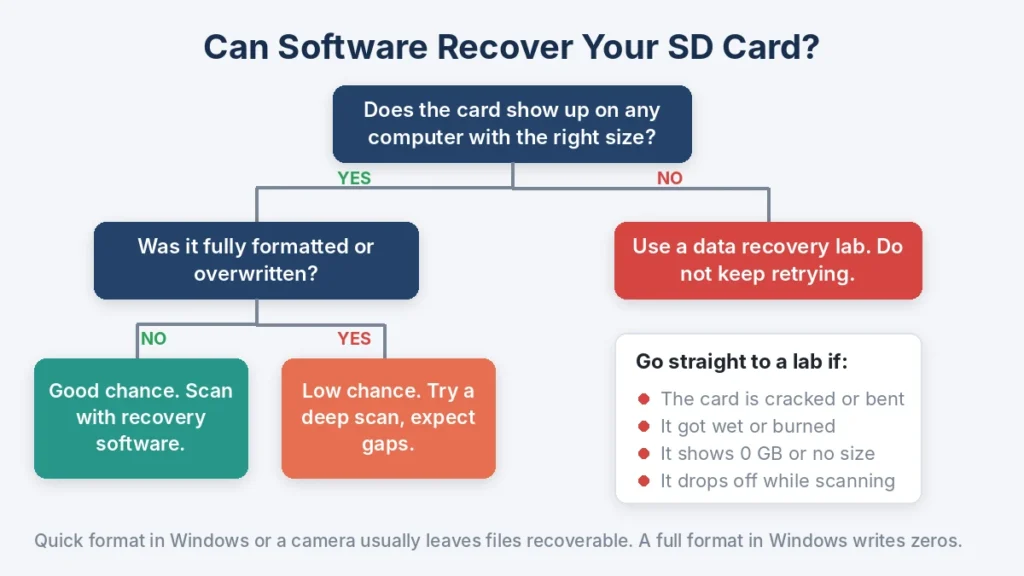
Software reads the card through the card’s own controller. If the card still shows up with its correct size, software has a real chance. If the card is dead or shows 0 GB, no program can reach the data.
| What happened | Chance with software | What to do |
| Photos deleted, card not used since | High | Scan with any tool in this guide |
| Quick format in Windows or the camera | Good | Use a deep scan or PhotoRec |
| Card shows as RAW or asks to be formatted | Good | Do not format, scan the card as it is |
| Full format in Windows | Very low | Software rarely helps, the data was overwritten |
| Card cracked, bent, wet or burned | None | Send it to a recovery lab |
| Card not detected anywhere or shows 0 GB | None | Send it to a recovery lab |
| Android card set up as internal storage | Very low on a PC | Try recovery on the original phone only |
Two details are easy to miss. First, a full format in Windows writes zeros over the whole card, while a quick format only resets the file table. If Quick Format was unchecked, software will not bring the files back. Second, an Android phone encrypts a card that was set up as internal storage. A computer cannot read that card, so desktop recovery tools will not work on it.
How Much Does SD Card Recovery Cost?
Software costs anywhere from nothing to about $150. PhotoRec and the free edition of Recuva cost nothing. The lowest paid options range from $20 for DMDE Express to $89 for Disk Drill PRO, and lifetime licenses go up to about $150.
A professional lab is a different price level. Published price lists from US labs start at around $200 for a card that still works but has a damaged file system. Broken cards cost more. Most microSD cards are monolithic, which means the controller and memory are sealed together in one block. Reading them means grinding the case open and wiring directly to the chip, which can cost $1,200 to $1,500. Many labs work on a no data, no fee basis, so ask about it before you ship the card.
How to Repair a Corrupted SD Card
Recover your files first, then repair the card. Repair tools fix the file system, and some of them delete damaged entries along the way. That can wipe out files you could have saved.
- Try another reader and port. A loose reader or worn USB port causes many card errors. Test the card in a second reader before anything else.
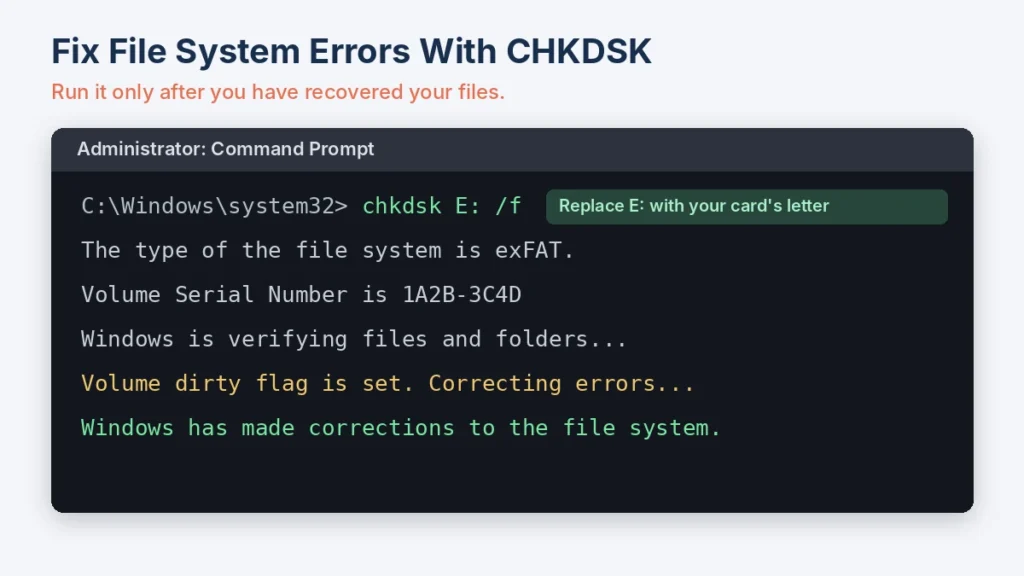
- Run CHKDSK on Windows. Open Command Prompt as administrator and type chkdsk E: /f, replacing E with your card’s drive letter. On a Mac, use First Aid in Disk Utility instead.
- Give the card a drive letter. If the card shows in Disk Management but not in File Explorer, right click it and choose Change Drive Letter and Paths.
- Format it with the official SD formatter. The SD Association offers the free SD Memory Card Formatter for Windows and Mac. It formats cards to the official SD standard, which often clears problems that a normal format leaves behind.
- Test the card before you trust it again. Run H2testw on Windows or F3 on Mac and Linux. Both tools fill the card and read it back. Errors mean the card is failing or fake, and it is time to replace it.
Why Do SD Cards Get Corrupted So Easily?
SD cards are small, cheap and moved between devices all the time. That mix causes most of the trouble. The common causes are:
- Removing the card or losing power while the camera is still writing a file
- Using one card in a camera, a phone and a laptop, where each device writes its own folders
- Pulling the card out of a computer without ejecting it
- Fake cards that report more space than they have, then overwrite older files once the real space runs out
- Worn out memory in dashcams and security cameras that rewrite the card all day
To avoid repeat problems, format the card in the camera you use it with, copy files off after every shoot, and replace heavily used cards every few years. For dashcams, buy cards sold as high endurance.
Recovered Videos Will Not Play? Here Is Why
Video files are fragile. Many cameras write key index data at the end of a recording. If the battery died or the card came out mid recording, that part never got written. Recovery software brings the file back, but players cannot open it.
A video repair tool can rebuild the missing parts using a healthy sample clip from the same camera. Our roundup of the best online video repair tools compares free limits and supported formats.
Final Thoughts
No single program wins every case. For a free start, Recuva handles fresh deletions on Windows and PhotoRec handles formatted cards on any system. DMDE and R-Studio give more control to people comfortable with technical tools. Disk Drill, EaseUS and Stellar Photo Recovery offer friendlier interfaces with previews, but their free versions save only a small amount.
Whatever you choose, stop using the card, test the free version first, and save every recovered file to another drive. That approach gives you the best data recovery software for SD card problems: the one that actually finds your files.
Frequently Asked Questions
It depends on what happened to the card. PhotoRec is a strong free choice for formatted cards, and Recuva suits recent deletions on Windows. DMDE and R-Studio suit advanced users. Disk Drill, EaseUS and Stellar Photo Recovery offer simpler interfaces with previews. Test the free version first and choose the tool that shows your files clearly.
PhotoRec is the best known open source option. It is free, has no recovery limit and runs on Windows, Mac and Linux. Its sister tool, TestDisk, focuses on lost partitions and damaged file systems.
SanDisk cards follow the same SD standard as other brands, so they do not need special software. Any tool in this guide works if the card is readable. Some SanDisk Extreme PRO cards include a download offer for RescuePRO Deluxe, so check the packaging first.
Often, yes. If the card still shows up with its correct size, recovery software can usually find files even when the card asks to be formatted. If the card is not detected, shows 0 GB or is physically broken, only a recovery lab can help.
Yes. PhotoRec and the free edition of Recuva have no recovery limit. DMDE is also free for up to 4,000 files per folder, and you can repeat that as often as you like. Most other free versions cap recovery between a few files and 2 GB.
Software ranges from free to about $150. The lowest paid options start at $20 a year for DMDE Express. Professional labs usually start around $200, and a broken microSD card that needs chip level work can cost $1,200 to $1,500.
Recover your files first, because repair can delete damaged data. Then try another card reader, run CHKDSK on Windows or First Aid on a Mac, and format the card with the SD Association’s free SD Memory Card Formatter. Test it with H2testw or F3 before using it again.
Most corruption happens when a card loses power or is removed while a file is being written. Sharing one card between devices, skipping the eject step, fake cards and worn out memory in dashcams are other common causes.
For file system errors, start with CHKDSK, which is built into Windows. For a clean reset, use the SD Memory Card Formatter from the SD Association. Neither tool recovers missing files, and no repair tool can fix a card with failing hardware.
Leave a Reply